 CareCard
Account Access
Create your CareCard account and verify your email, sign in and stay signed in, and sign out on any computer.
Everything you do in CareCard starts with your account. This page covers the whole journey: Registering and verifying your email, Signing in and staying signed in, and Signing out when you finish.
Registering
Create a CareCard account to begin preparing and submitting the documents you need before your clinical placement. It takes two steps: fill in the sign-up form, then verify your email with the code CareCard sends you.
How to Register
Go to the sign-up page. The empty form asks for three details:
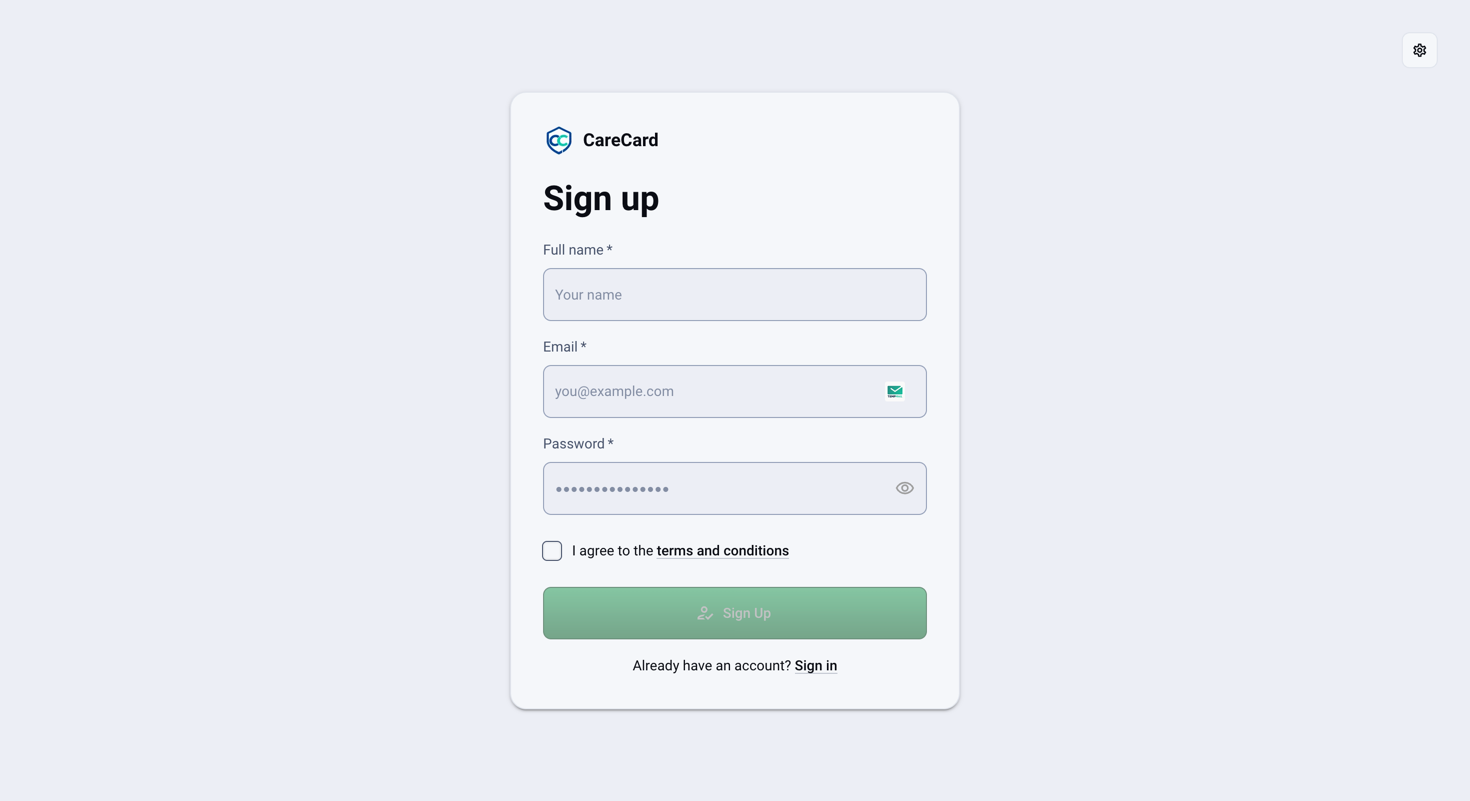
Fill it in:
- Full name — Use the name shown on your official records so reviewers can compare them. It can include letters, numbers, and
-_.,'( ). - Email — Used for sign-in and verification messages. Use an address you can access throughout your program.
- Password — 15–128 characters. Spaces, letters, numbers, symbols, non-English characters, and emoji are all allowed, and no mix of types is required. Select the eye icon inside the field to check what you typed.
- Select the checkbox next to I agree to the terms and conditions. Sign Up stays disabled until you do.
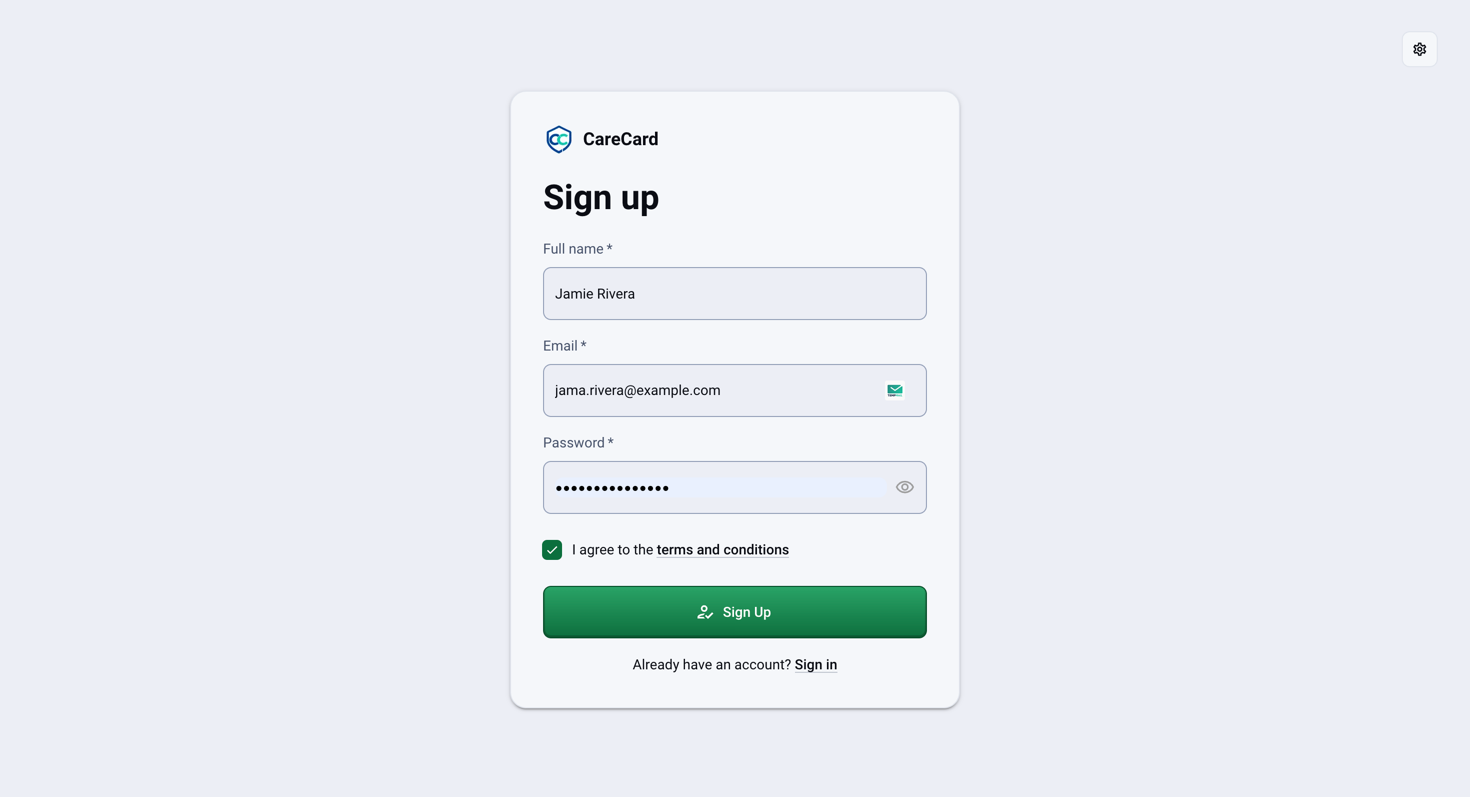
Select Sign Up. CareCard creates your account, signs you in automatically, and sends you to the Verify your email page.
Already have an account? Select Sign in at the bottom of the form instead.
Verify Your Email
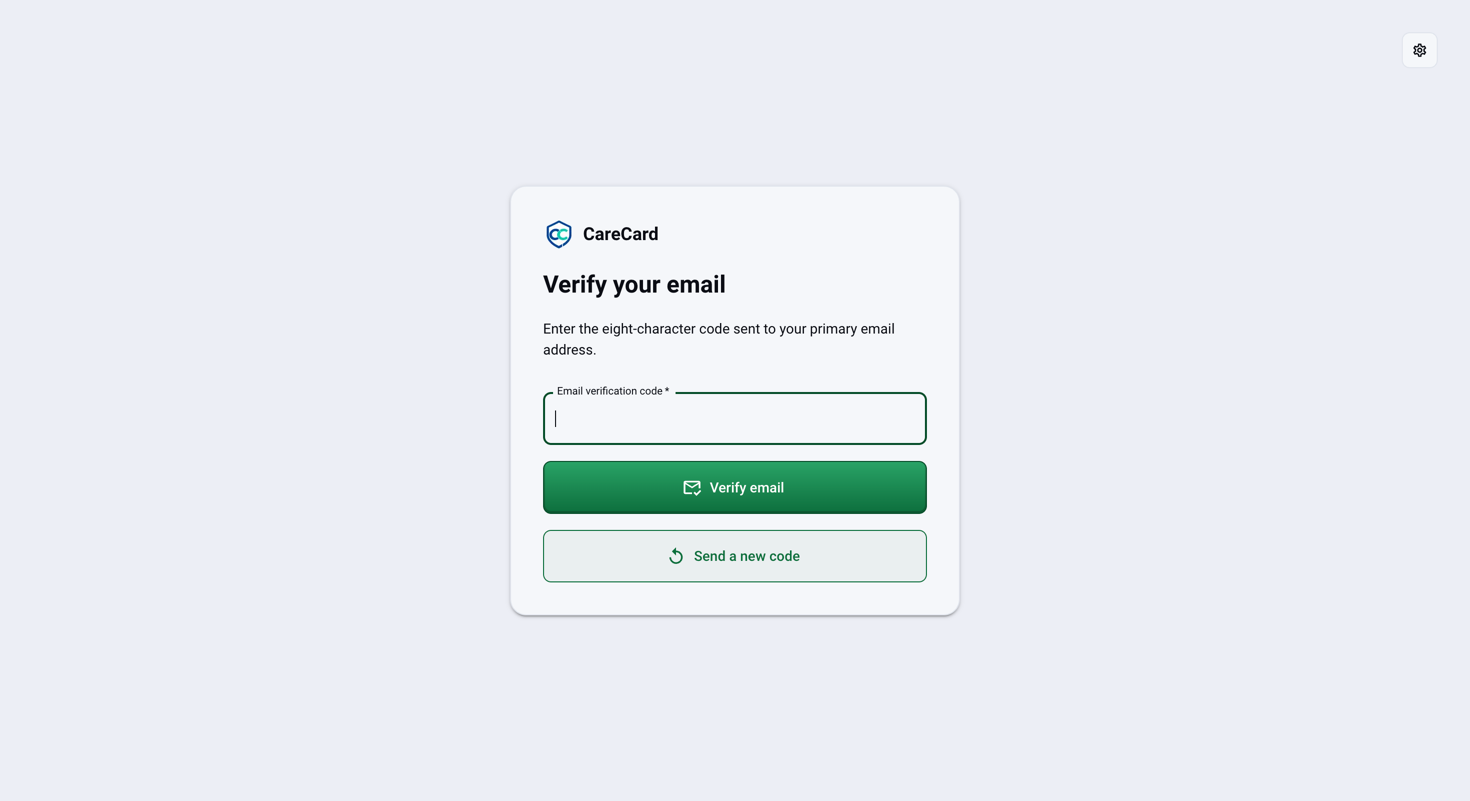
CareCard emails an eight-character verification code to the address you registered with. Enter it on the Verify your email page and select Verify email.
If the code doesn't arrive, select Send a new code. Codes are rate-limited: when one was sent moments ago, CareCard asks you to use that code or wait 60 seconds before requesting another. If the page reports that the verification email couldn't be sent, request a new code from that same page.
Once the code is accepted, the Email verified page shows your address with a green Verified badge and a Continue to Dashboard button.
If it shows Email verification pending instead, select Retry so CareCard can reload your current verification state.
A verified primary email is required before you can request institution access, so verify it right after signing up.
Signing In
Sign in to view your requirements, upload documents, and track your submission status. Choose whichever method suits you: your password, a one-time code emailed to you, or a one-time code texted to your phone.
How to Sign In
Go to the sign-in page:
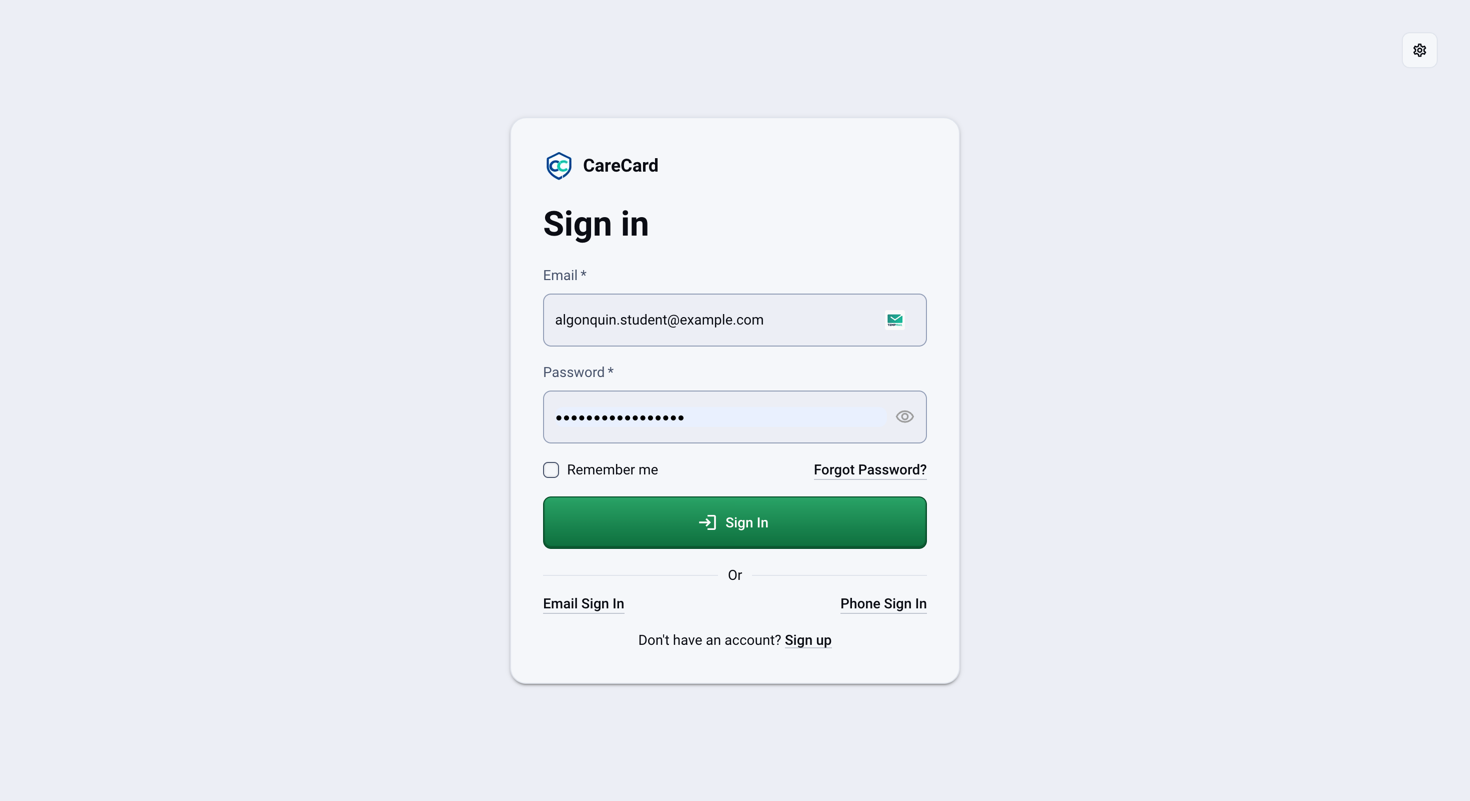
Fill it in:
- Email — The address you registered with.
- Password — Case-sensitive. Select the eye icon inside the field to check what you typed.
- Remember me — See How long you stay signed in below.
Select Sign In. You land on your Home dashboard, where you can review your progress and items that need attention. If you were sent to the sign-in page from another CareCard page, you're returned there instead.
No account yet? Select Sign up at the bottom of the form and follow Registering above.
Below the Sign In button, select Email Sign In for a code sent to your email, or Phone Sign In for a code sent by text message:
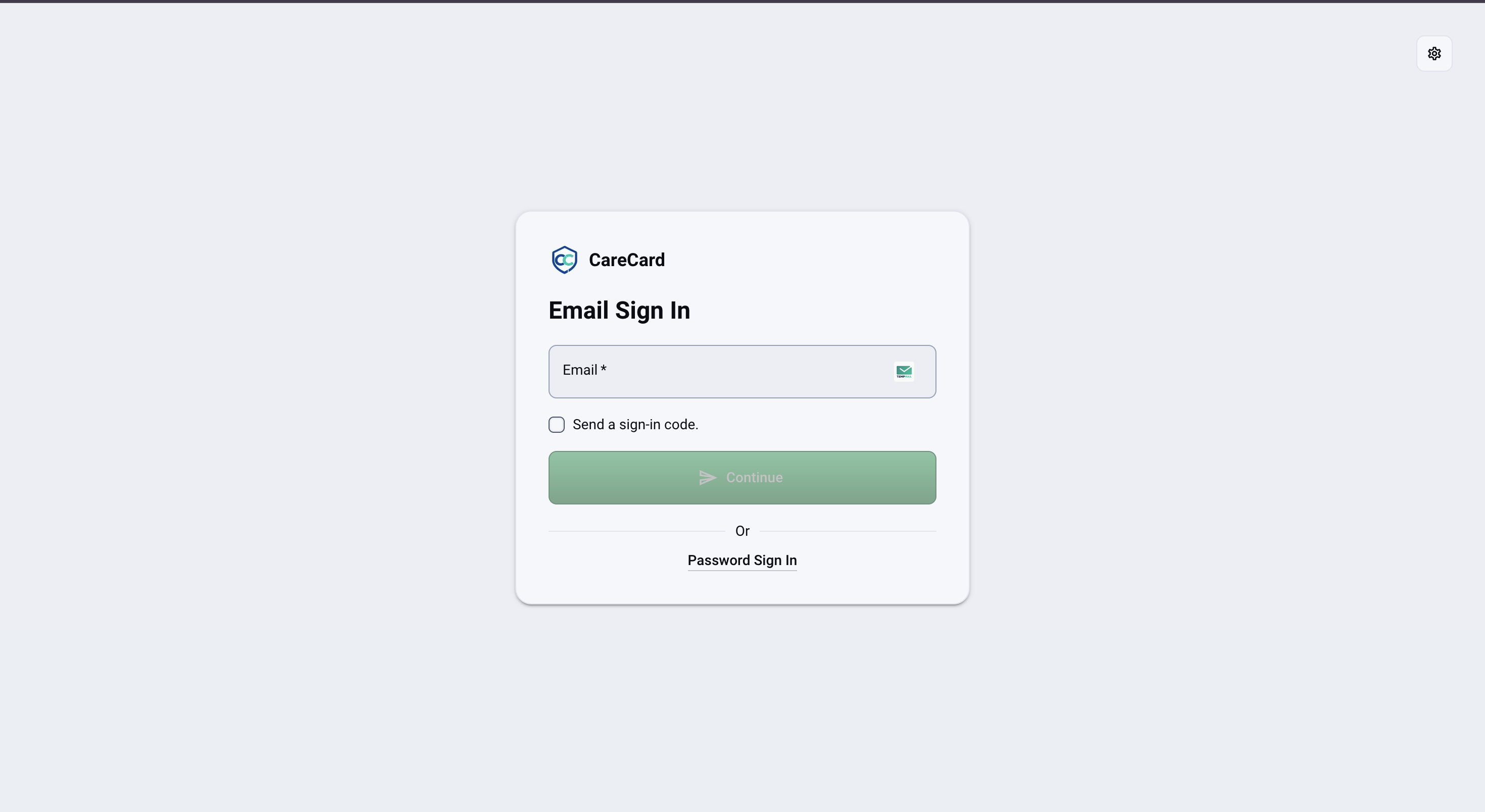
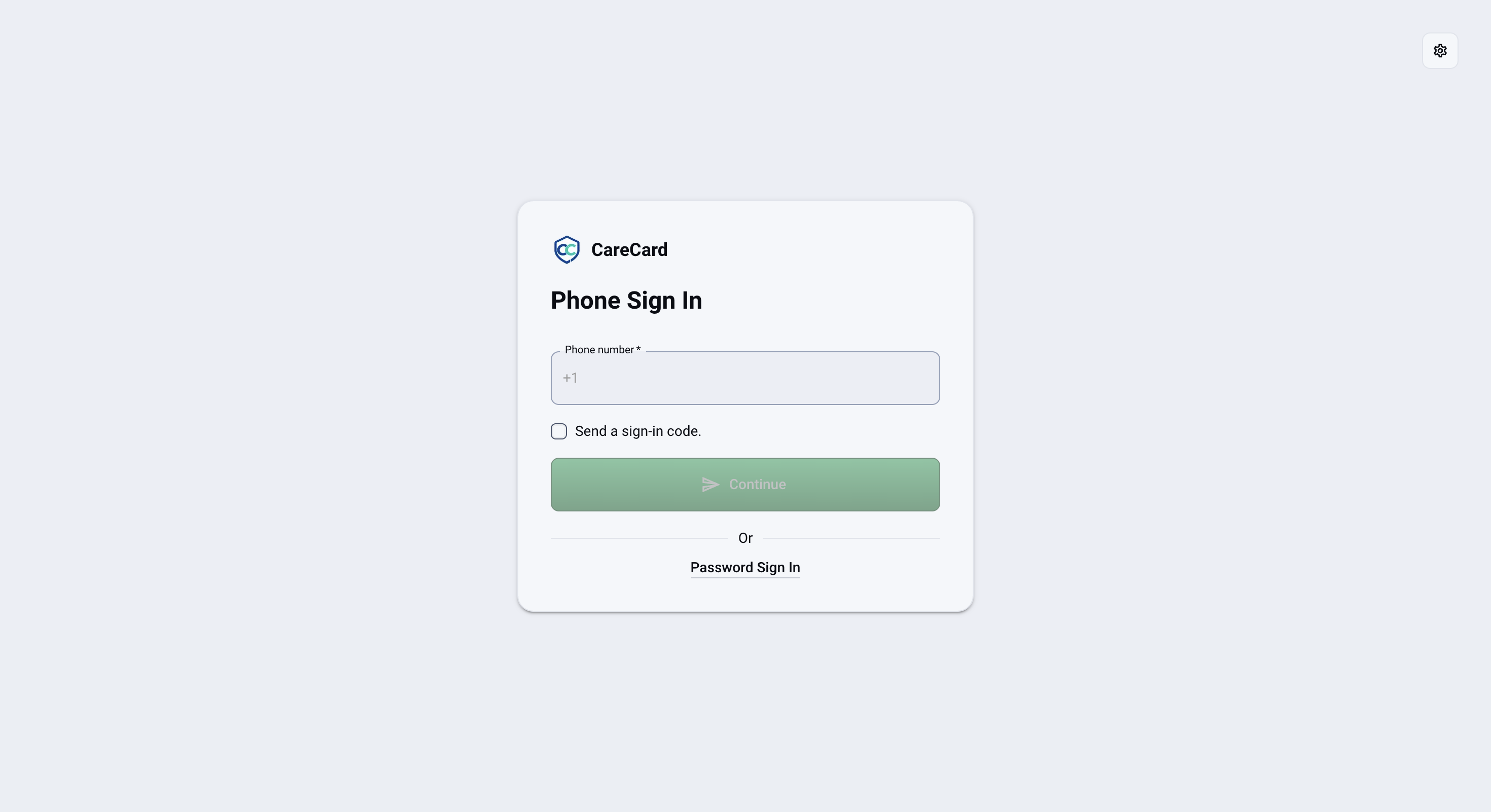
Enter your email address or phone number, select Send a sign-in code, then select Continue — it stays disabled until both are done. CareCard sends a one-time code and opens the matching code-entry page:
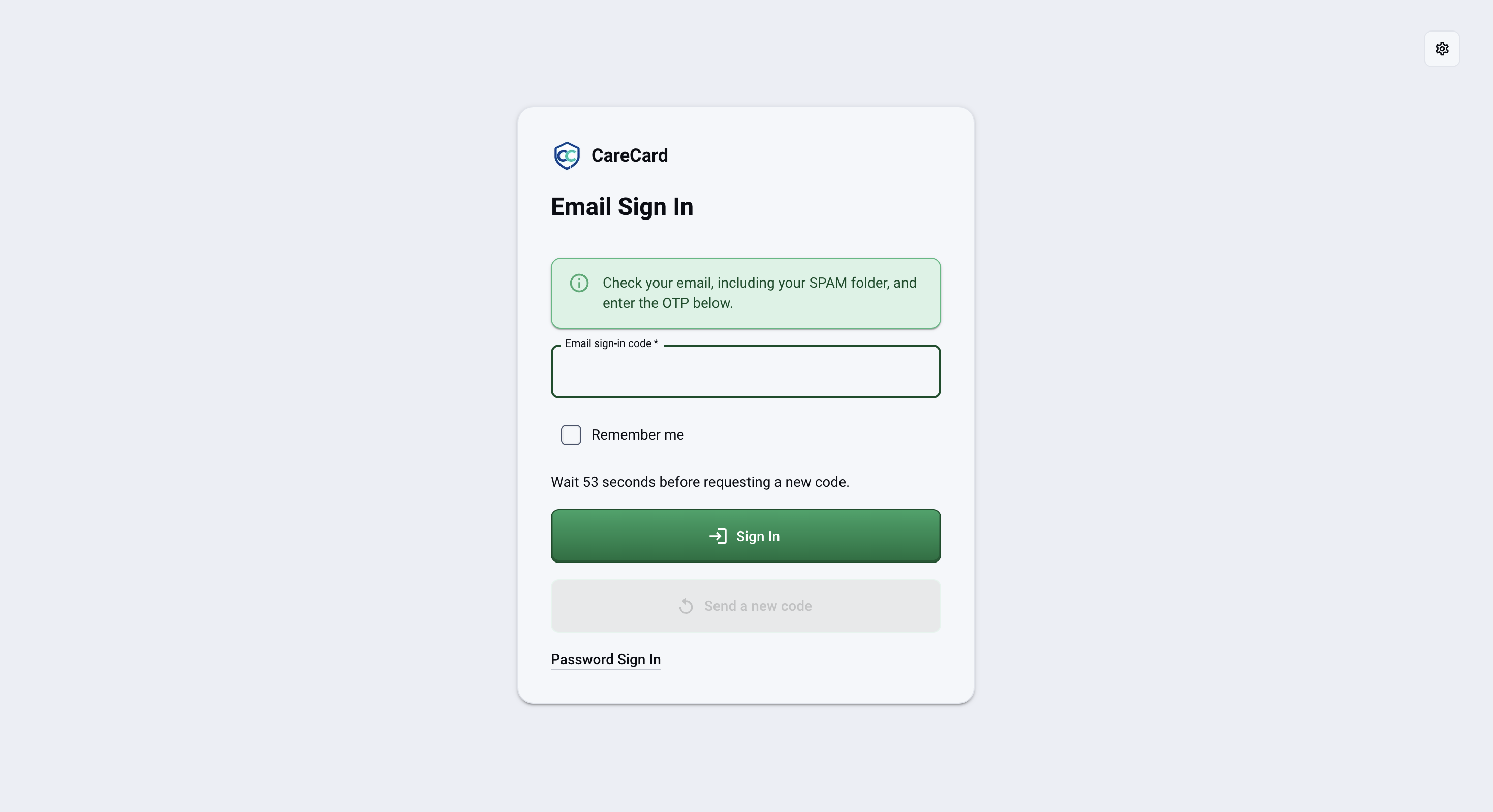
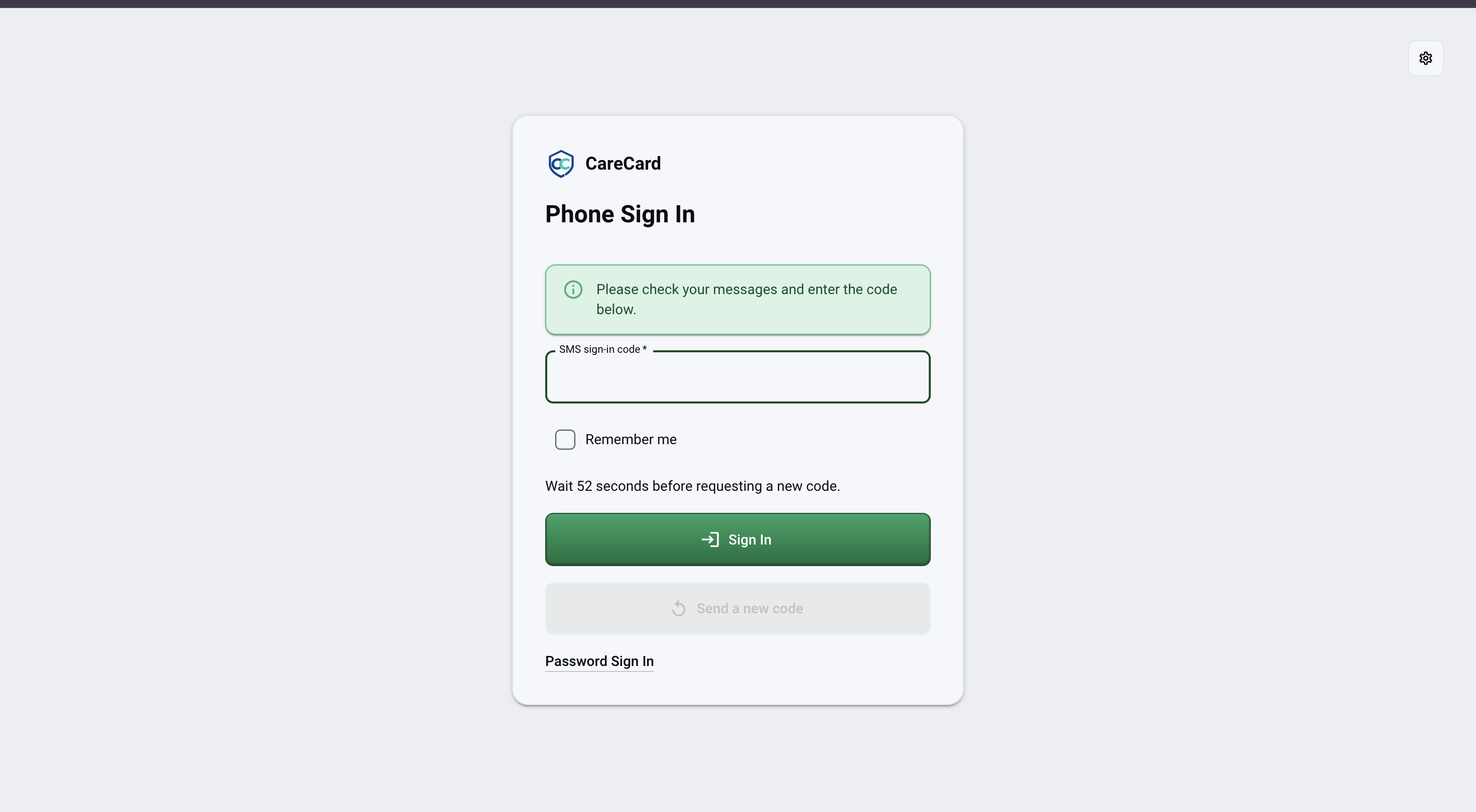
Enter the code, choose Remember me if you want, and select Sign In. If the code doesn't arrive, wait for the countdown shown on the page (for example, Wait 53 seconds before requesting a new code), then select Send a new code.
Changed your mind? Select Password Sign In on either page to go back to signing in with your password.
How Long You Stay Signed In
- Without Remember me — Your session lasts about 10 minutes and is extended every time you use CareCard. Step away for longer and CareCard signs you out and asks you to sign in again.
- With Remember me — You stay signed in on that device for up to 7 days.
This applies to every method — password, email code, or phone code. Only select Remember me on a device that is yours alone. On a shared or public computer, leave it clear and log out when you finish.
Select Forgot Password?, next to Remember me above the Sign In button. In the Reset password dialog, choose Email or SMS, enter your address or phone number, and select the Send a password reset code checkbox. Select the X in the top corner to close it without sending anything.
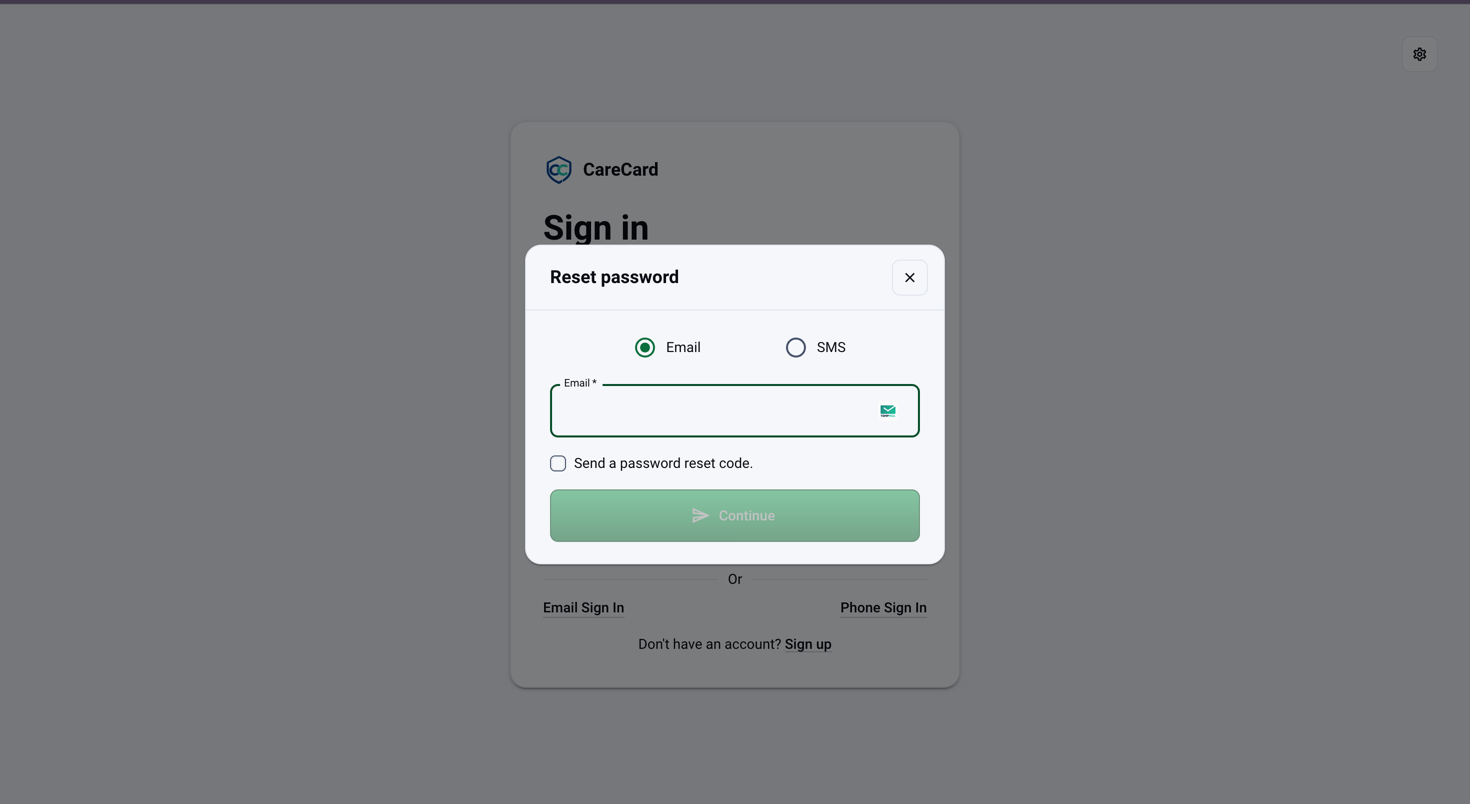
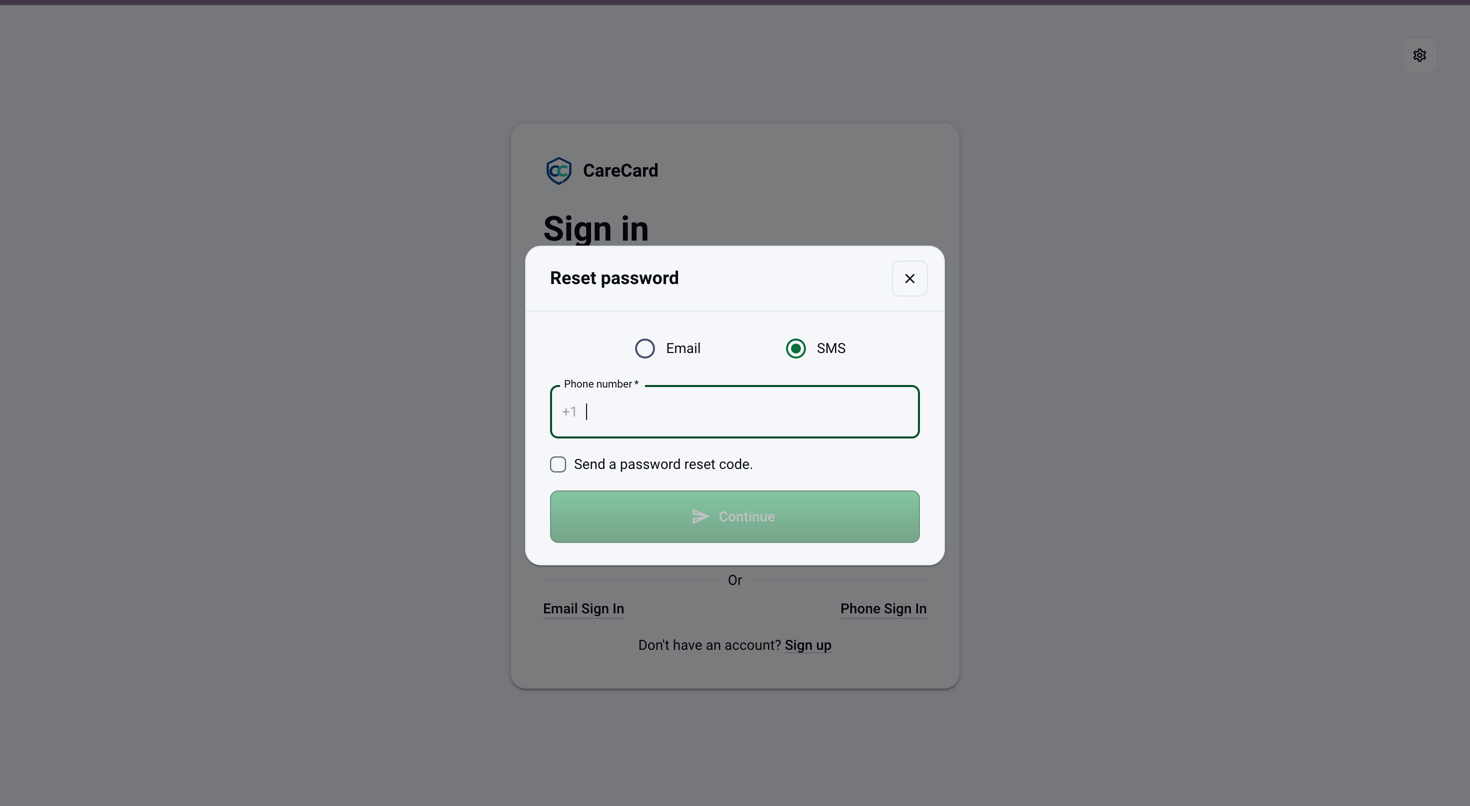
Select Continue — it stays disabled until the field is filled in and the checkbox is selected. CareCard confirms that reset instructions are on the way and sends a code by the method you chose. That message brings you to Reset your password:
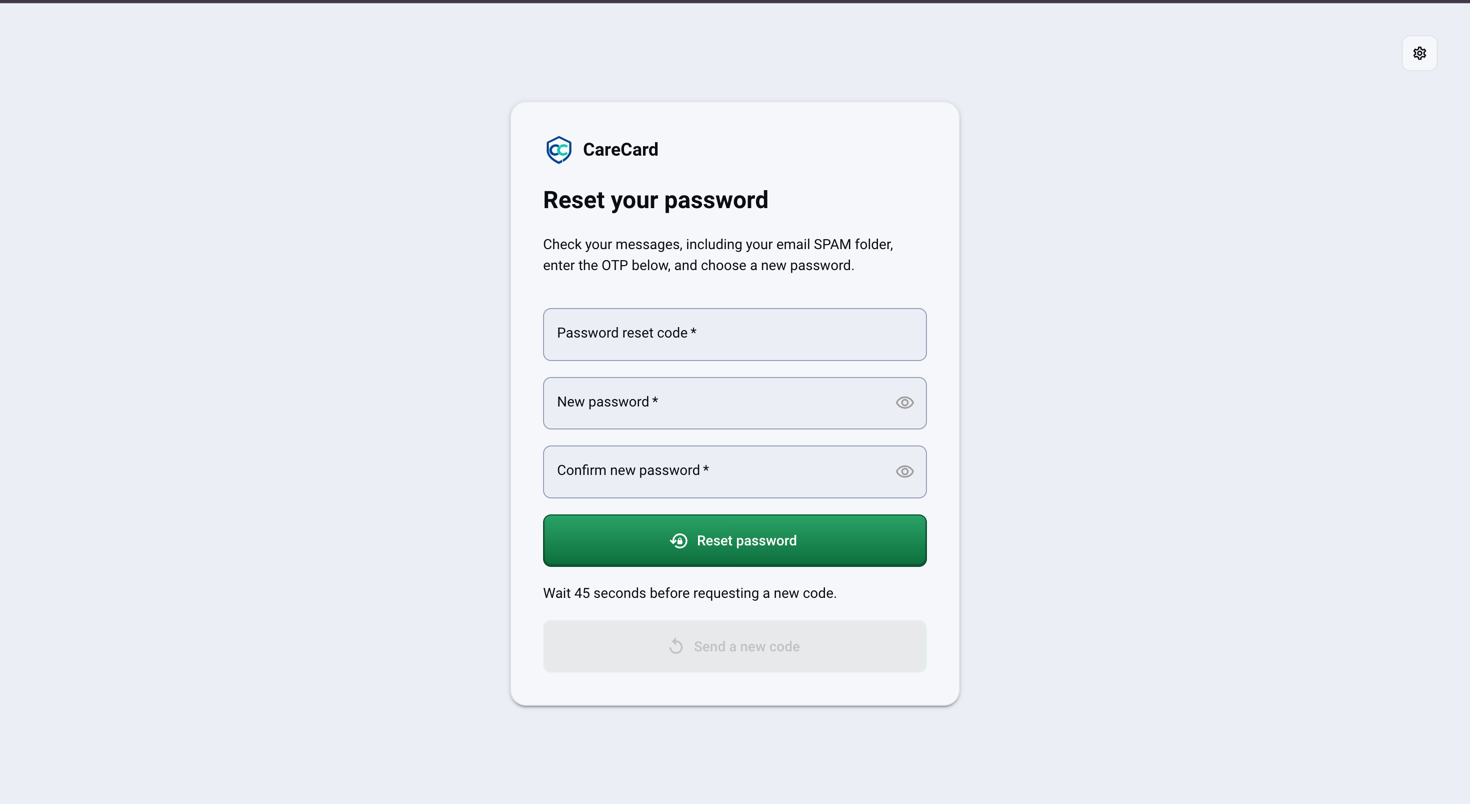
- Enter the eight-character Password reset code from that message.
- Choose a New password — the same 15–128 character rule as registration.
- Repeat it in Confirm new password, then select Reset password.
If the code has expired or never arrived, wait for the on-screen countdown, then select Send a new code on that page. Then sign in with your new password.
If the reset message doesn't arrive within a few minutes, check your spam or junk folder before requesting another one.
Trouble Signing In
Wrong email or password, account not found, signed out unexpectedly, an unverified email, or a one-time code that never arrives — all are covered on Troubleshooting.
Signing Out
Signing out ends your CareCard session on that device and returns you to the sign-in page. Your uploads, submissions, and requirement statuses are saved on your account, so nothing is lost.
How to Sign Out
Your account menu sits at the bottom of the left sidebar and shows your name and email address. Select it, then select Logout.
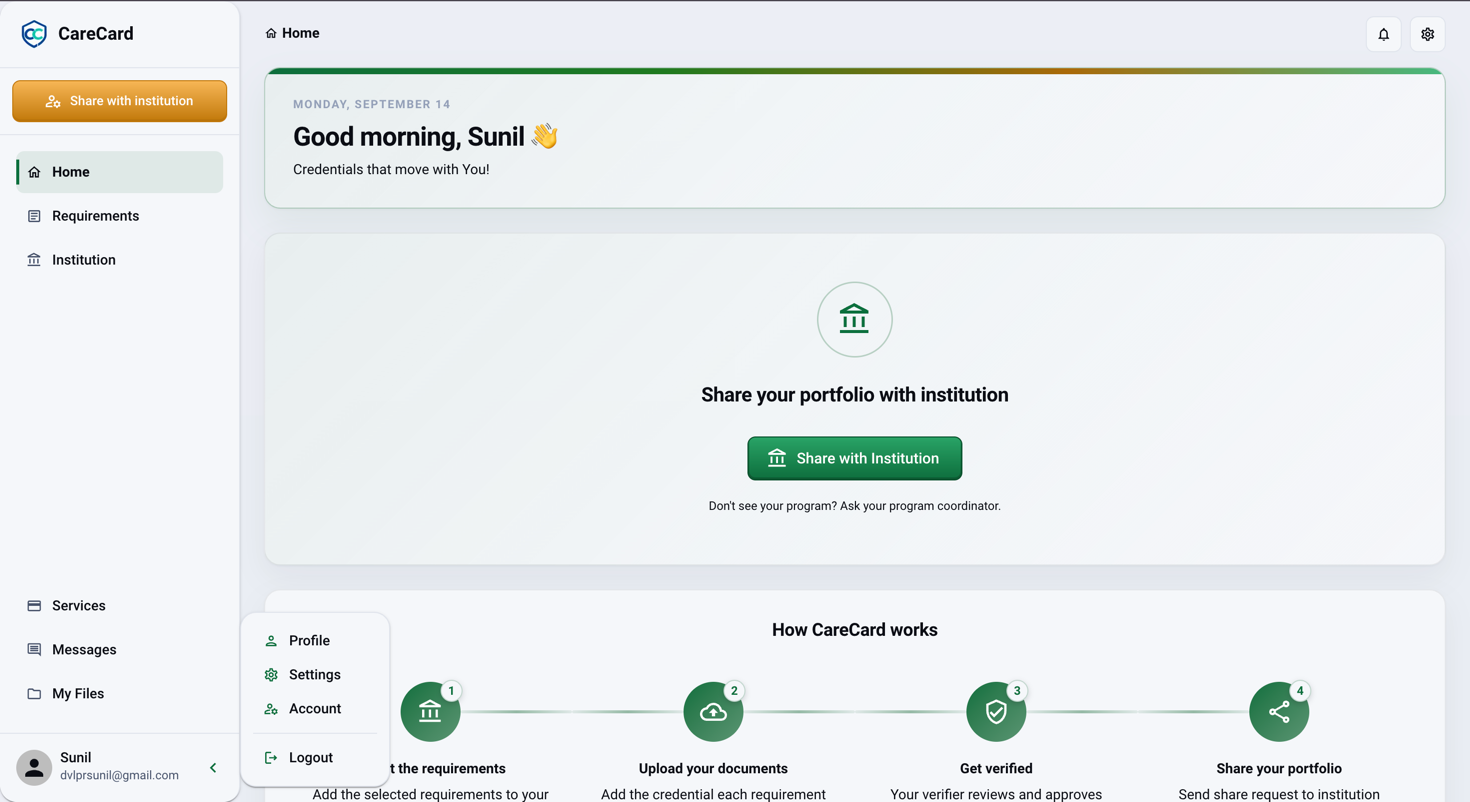
On a phone or a narrow window the sidebar is hidden — open it with the menu button first, then use the account menu at its bottom.
CareCard clears your session, shows a short Logging out… message, then returns you to the sign-in page.

To use CareCard again, sign in with the same email and password.
When CareCard Signs You Out Automatically
- After inactivity — If you signed in without Remember me, your session ends after about 10 minutes of inactivity.
- After 7 days — If you signed in with Remember me, that session expires after 7 days on that device.
Either way you're sent back to the sign-in page, and after signing in again you return to the page you were trying to open.
On a Shared or Public Computer
- Don't select Remember me when you sign in.
- Select Logout as soon as you finish — closing the tab or the browser is not the same as logging out.
- Log out before handing the computer to someone else, even for a moment.
Your CareCard account holds your personal and health-related documents. Always log out on a computer you share with anyone else.