 CareCard
Reviewing a Submission
Open a student, read what they sent, and see the status of each requirement.
Pick a requirement on the left. Read what the student sent on the right. This page is only about reading. To record your answer, see Recording a Decision.
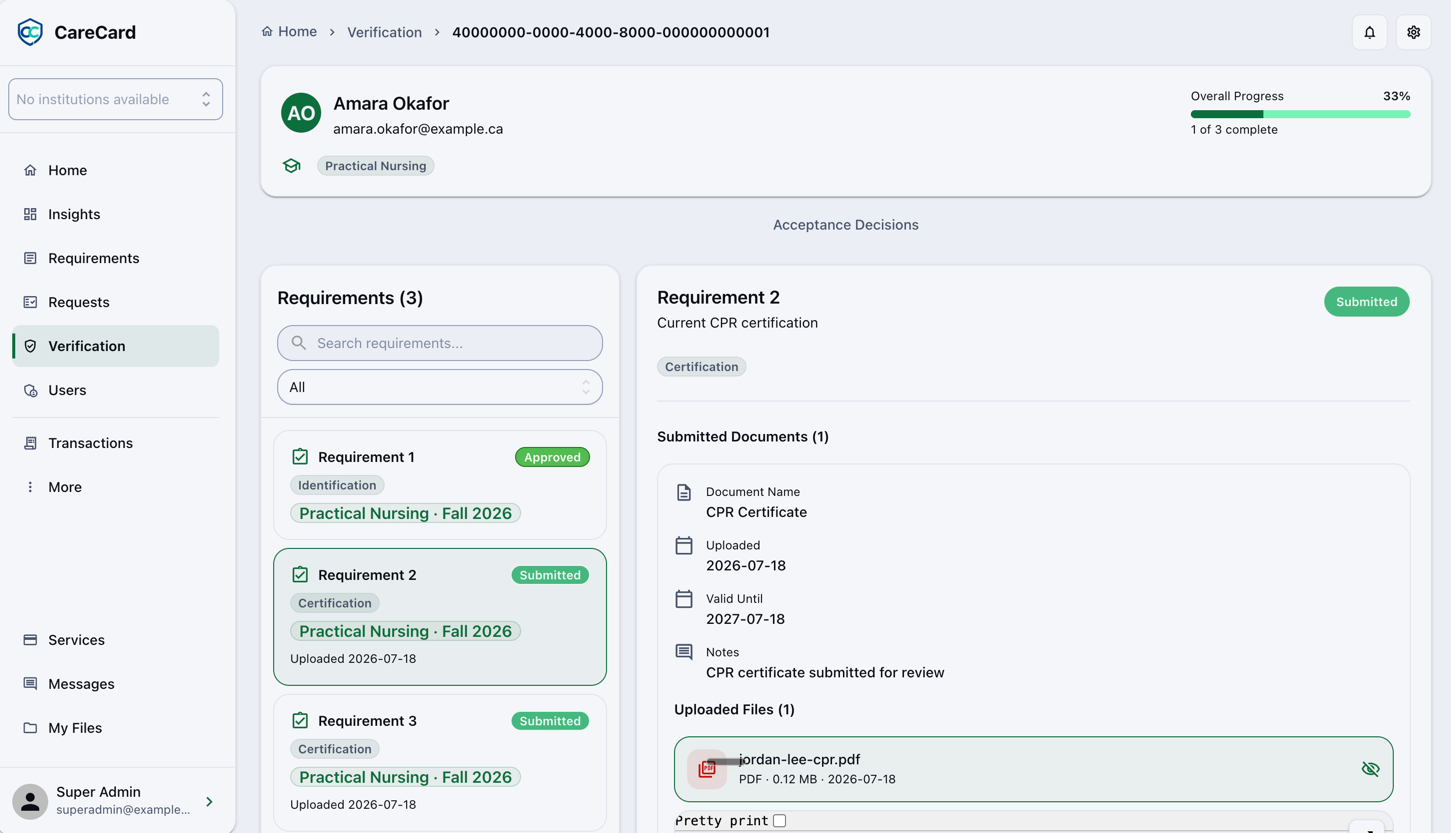
Open a Student
Click the arrow in the Review column on the Submissions list.
At the top you see the student's name, email, and Overall Progress (how many requirements are done). Each chip is one program they are in.
Find a Requirement
The left panel lists the student's Requirements. To find one faster:
- Search — Type part of the name.
- Status — Show one status at a time.
Read What They Sent
Click a requirement. The right panel shows the document and the files the student uploaded.
- Click a file to see it.
- "This uploaded file is not available for preview." means the file can't be shown.
- "No document submitted yet." means they sent nothing — so there is nothing to review.
If someone already decided, Reviewer Feedback shows who decided, when, and what they wrote.
What Each Status Means
| Status | What it means |
|---|---|
| Submitted | Waiting for you |
| Processing | A review is in progress |
| On Hold | Paused — this blocks the certificate |
| Information Required | You asked the student for more |
| Approved | Accepted |
| Conditional | Accepted, but only until a set date |
| Rejected | Not accepted |
| Not Submitted | Files added, but not sent yet |
| Cancelled | No longer needed |
Expired is not something you set. An approval expires on its own once the date you picked passes. The student fixes it by sending again.
Ready to decide? See Recording a Decision.