 CareCard
CareCard GuideUser Guide
Cart
Review the services in your cart, change quantities, remove one, and start checkout.
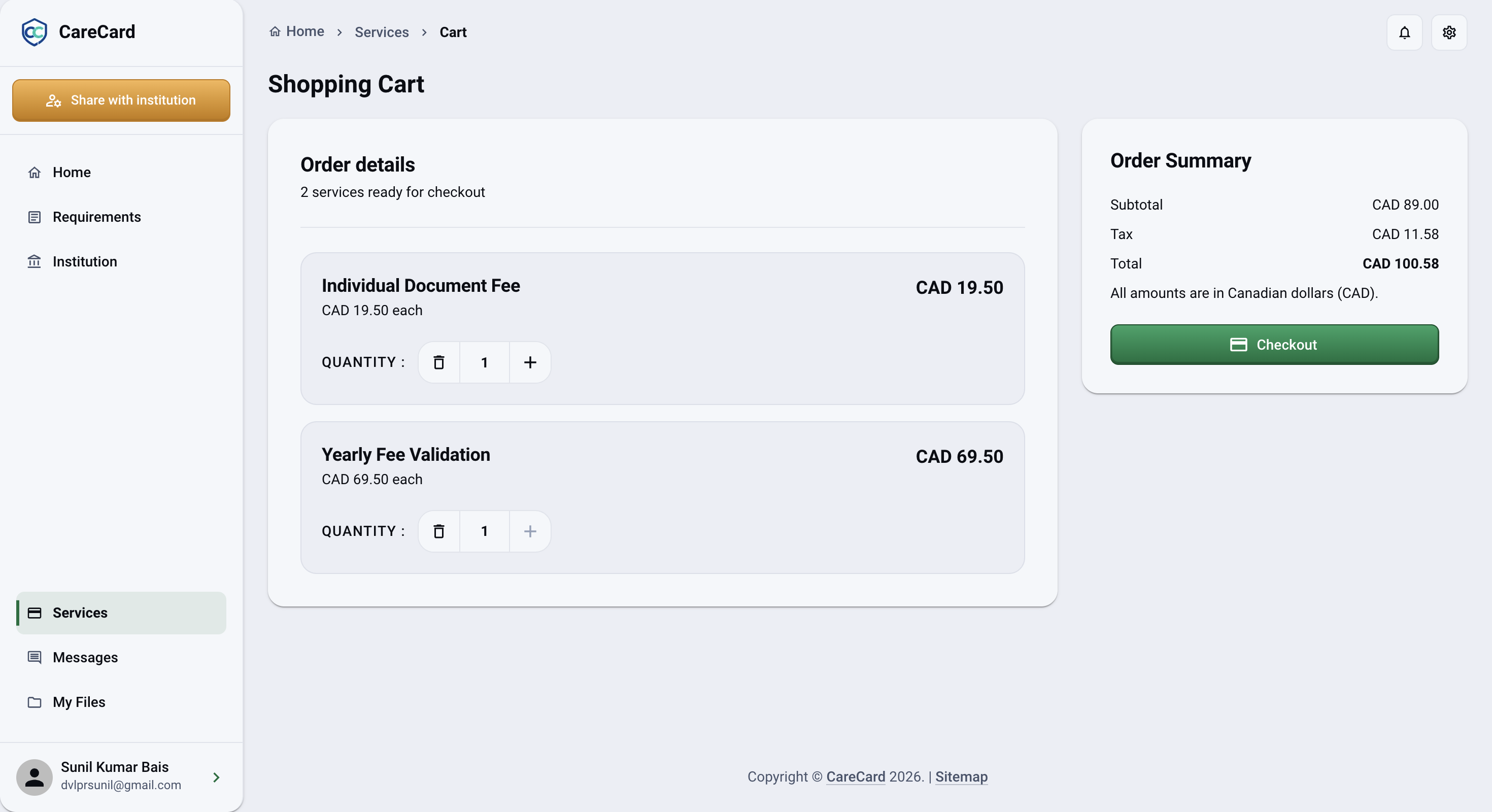
Your Shopping Cart lists every service you added from Services, with its quantity and price, so you can check everything before you pay. Reach it with View Cart.
Order Details
Each service is a line showing its name, its price each, and a quantity control:
- Select + to add more, up to that service's per-cart limit.
- Select − to lower the quantity.
- At a quantity of 1, the − turns into a trash icon — select it to remove the service.
If a service becomes unavailable or changes price, its line shows Unavailable service. Review or remove it before you can check out.
Order Summary
The Order Summary panel on the right totals everything — Subtotal, Tax, and Total. All amounts are in Canadian dollars (CAD). The Checkout button sits here too.
Check Out or Keep Shopping
- Services — Return to the catalogue to add more.
- Checkout — Continue to Checkout once your cart can be paid.
- Resume Checkout — Appears instead of Checkout when a payment for this cart is already in progress, and takes you back to finish it.
If your cart is empty, the page says Your cart is empty and offers Browse Services to start again.