 CareCard
Checkout
Fill in checkout, enter your card in Moneris's secure fields, and read the payment status.
Checkout collects what CareCard needs to charge your cart. Your card details go only into Moneris, CareCard's payment processor — CareCard never sees your full card number or security code.
Contact & Billing
- Cardholder Name — The name on the card.
- Invoice Email — From your account; not editable here.
- Phone Number.
- Billing Address — Choose a saved profile address, or select Enter a New Billing Address and fill in Unit Number (optional), Street Number, Street Name, City, Province or State Code, Postal or ZIP Code, and Country Code.
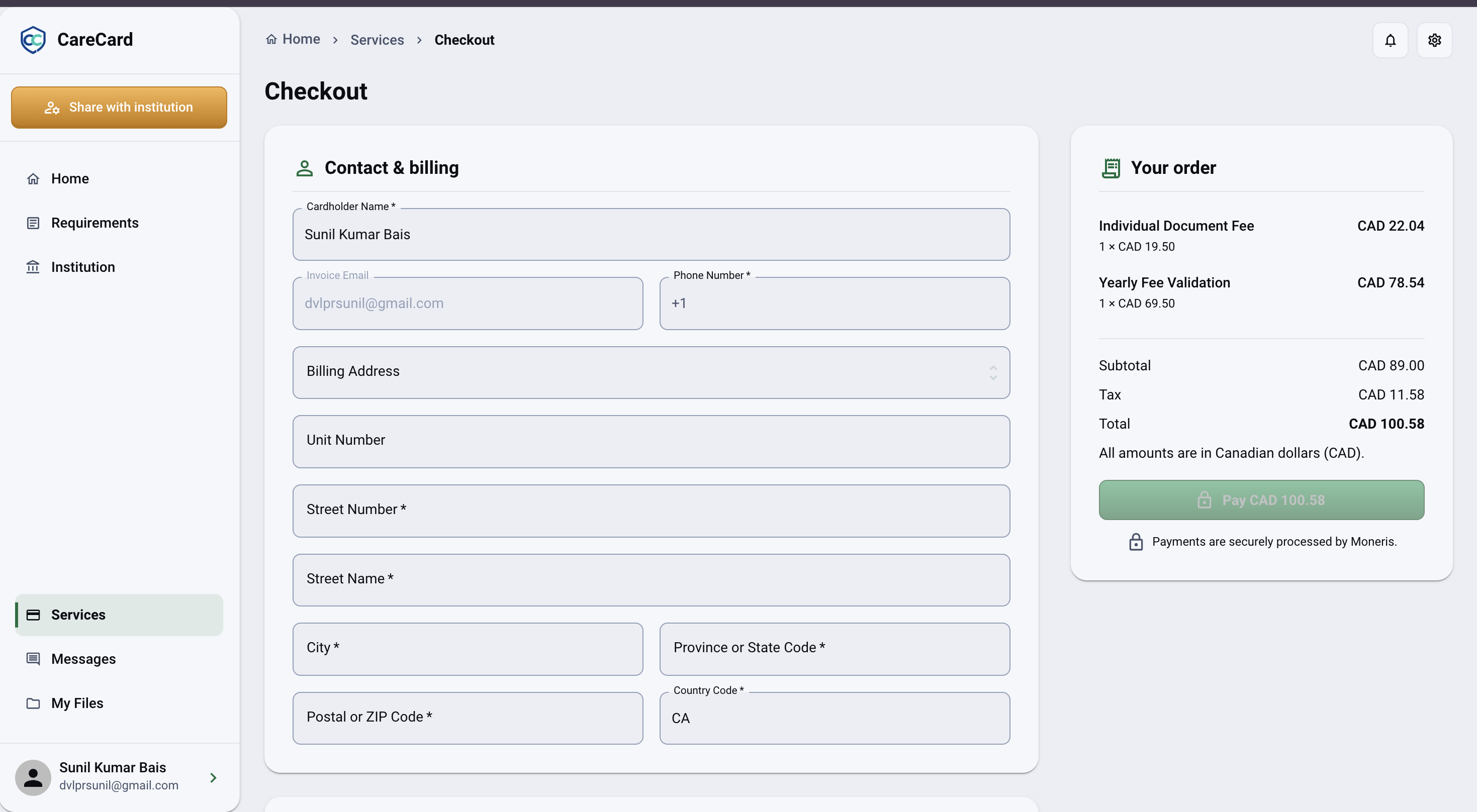
Choosing a saved address still asks you to enter the street number and street name separately. Your saved profile address stays unchanged.
Payment Method
- New Card — Enter a card in the secure fields below.
- A saved card — Shown by its brand, last four digits, and expiry, from an earlier checkout where you saved it.
Using a new card, you can tick Save this payment method for future purchases I authorize to have it offered as a saved card next time.
Enter Your Card
For a new card, Moneris collects the Card Number, Expiry (MM/YY), and Security Code in its own secure fields, embedded in the checkout page. Use MM/YY for expiry; the security code is the 3 or 4 digits on your card.
A saved card only ever shows masked details (brand, last four digits, expiry). The full card number and security code are never shown in CareCard.
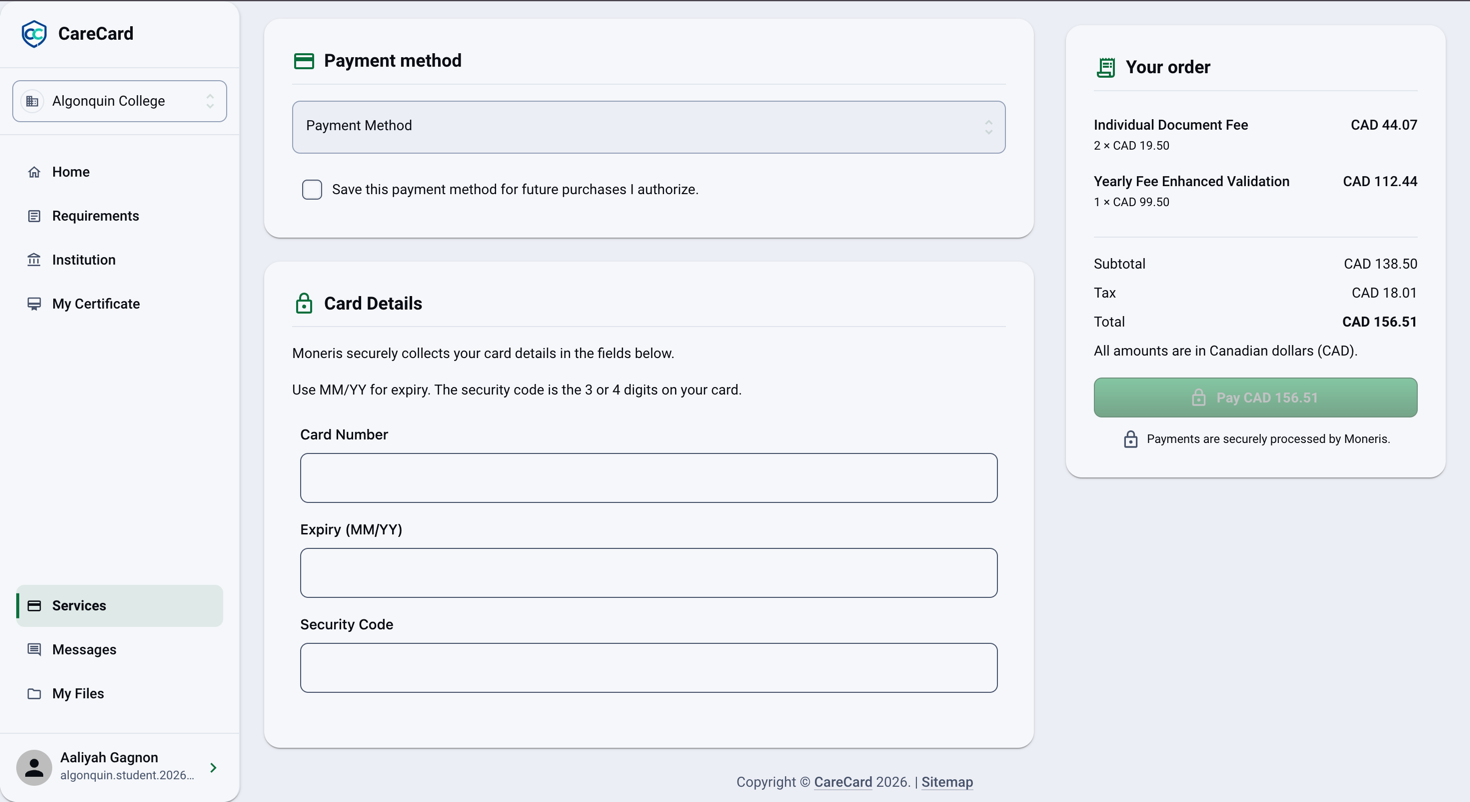
A sandbox checkout shows Sandbox checkout — use test cards only. It does not charge a real card.
Pay
Below your card, Services in This Payment lists what you're buying with its Subtotal, Tax, and Total. Select Pay — it shows the amount, which matches your cart's Total — and CareCard shows Securing your payment… while it works.
Payment Status
| Status | What it means | What to do |
|---|---|---|
| Verification needed | Your bank wants extra verification first | Complete the verification shown on the page |
| Being verified | Moneris hasn't reported back yet | Keep the page open, or check its status later — don't pay again |
| Payment complete | The charge went through | You're taken to the invoice for this payment |
| Payment not completed | CareCard couldn't complete the payment | Return to your cart to review and try again |
If your bank asks for extra verification, complete it in the form CareCard shows. That step is between you and your bank; CareCard only reports whether it worked.
Resume, Check, or Cancel
While a payment is unresolved, CareCard offers:
- Continue Payment — Resumes an interrupted step, such as entering your card again or finishing verification.
- Check Payment Status — Refreshes the page with Moneris's latest answer, without starting a new charge.
- Cancel Checkout — Stops a payment that's still waiting on you and returns your cart to Cart.
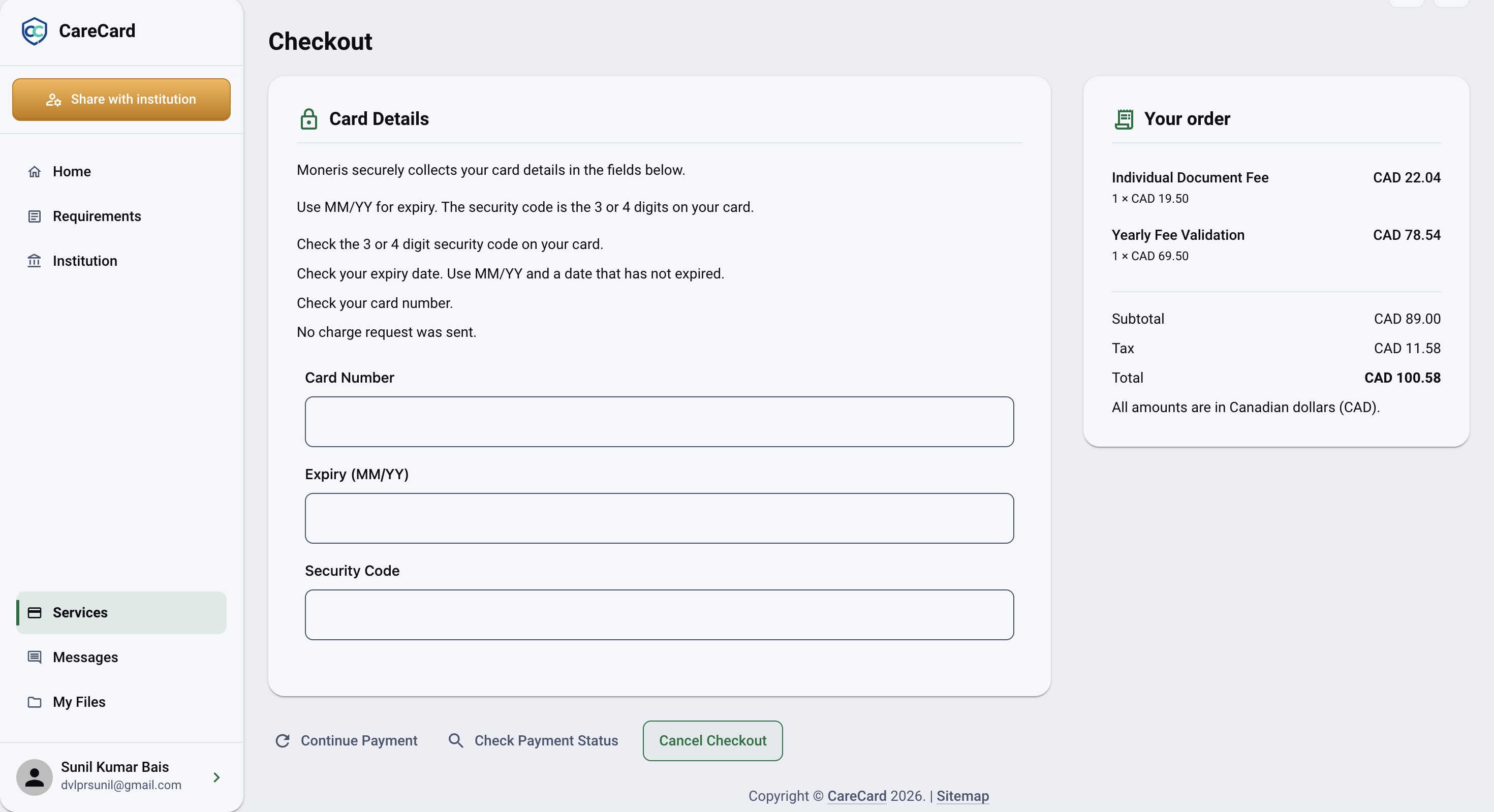
If CareCard can't confirm a result, check your account and your card statement before trying again, so you don't pay twice.
If your cart or its prices changed since you opened Checkout, CareCard asks you to review your cart again before paying.