 CareCard
Settings
Set your language, date and time formats, theme, table rows, notification switches, and account actions.
Settings controls how CareCard looks, formats dates and times, and notifies you. Open it from the account menu at the bottom of the Side Menu. It has five sections: General, Preferences, Email Notification, SMS Notification, and My Account.
Settings are your preferences. Your Full Name, Date of Birth, Email Addresses, phone numbers, and addresses live on the Profile page instead.
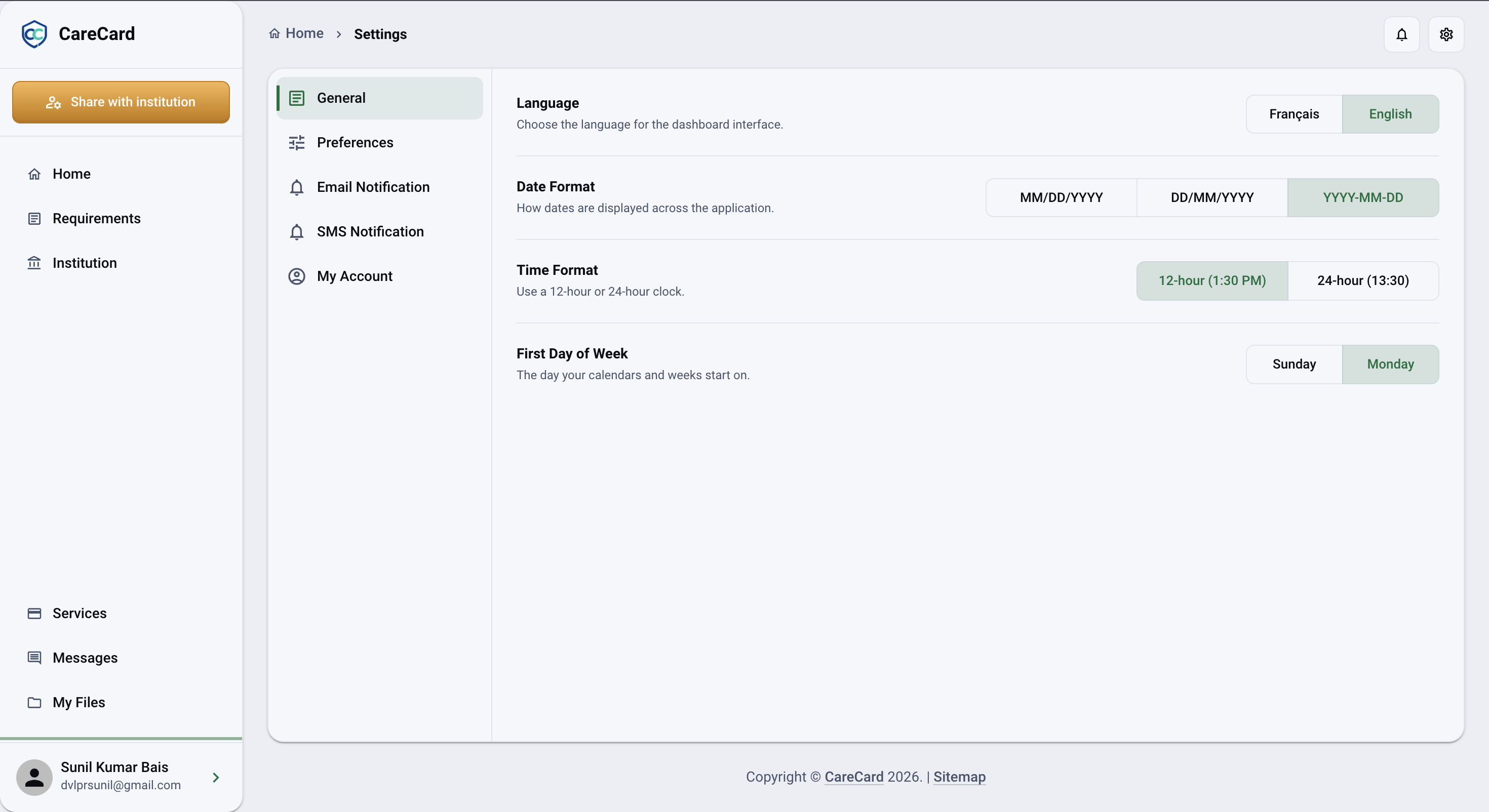
General
- Language — English or Français for the whole dashboard.
- Date Format —
MM/DD/YYYY,DD/MM/YYYY, orYYYY-MM-DD. Date fields across the dashboard, including submission and expiry dates, follow this. - Time Format — 12-hour (1:30 PM) or 24-hour (13:30).
- First Day of Week — Sunday or Monday.
Language and theme are also in the gear menu in the top bar.
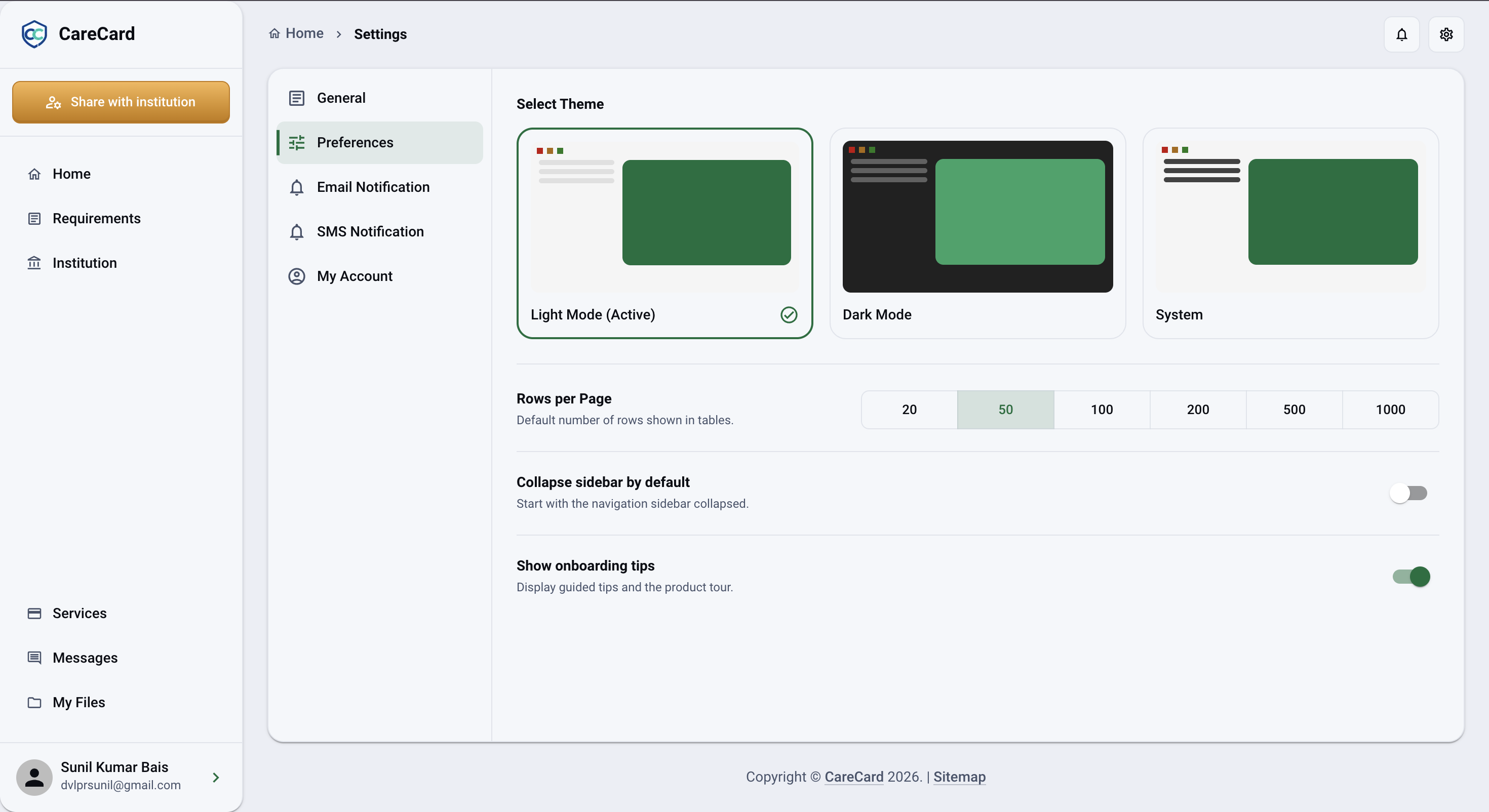
Preferences
- Select Theme — Light Mode, Dark Mode, or System (follows your device).
- Rows per Page — how many rows tables show by default: 20, 50, 100, 200, 500, or 1000.
- Collapse sidebar by default — start with the Side Menu collapsed.
- Show onboarding tips — whether guided tips and the product tour may appear. Turning this back on does not replay a tour you already finished or skipped.
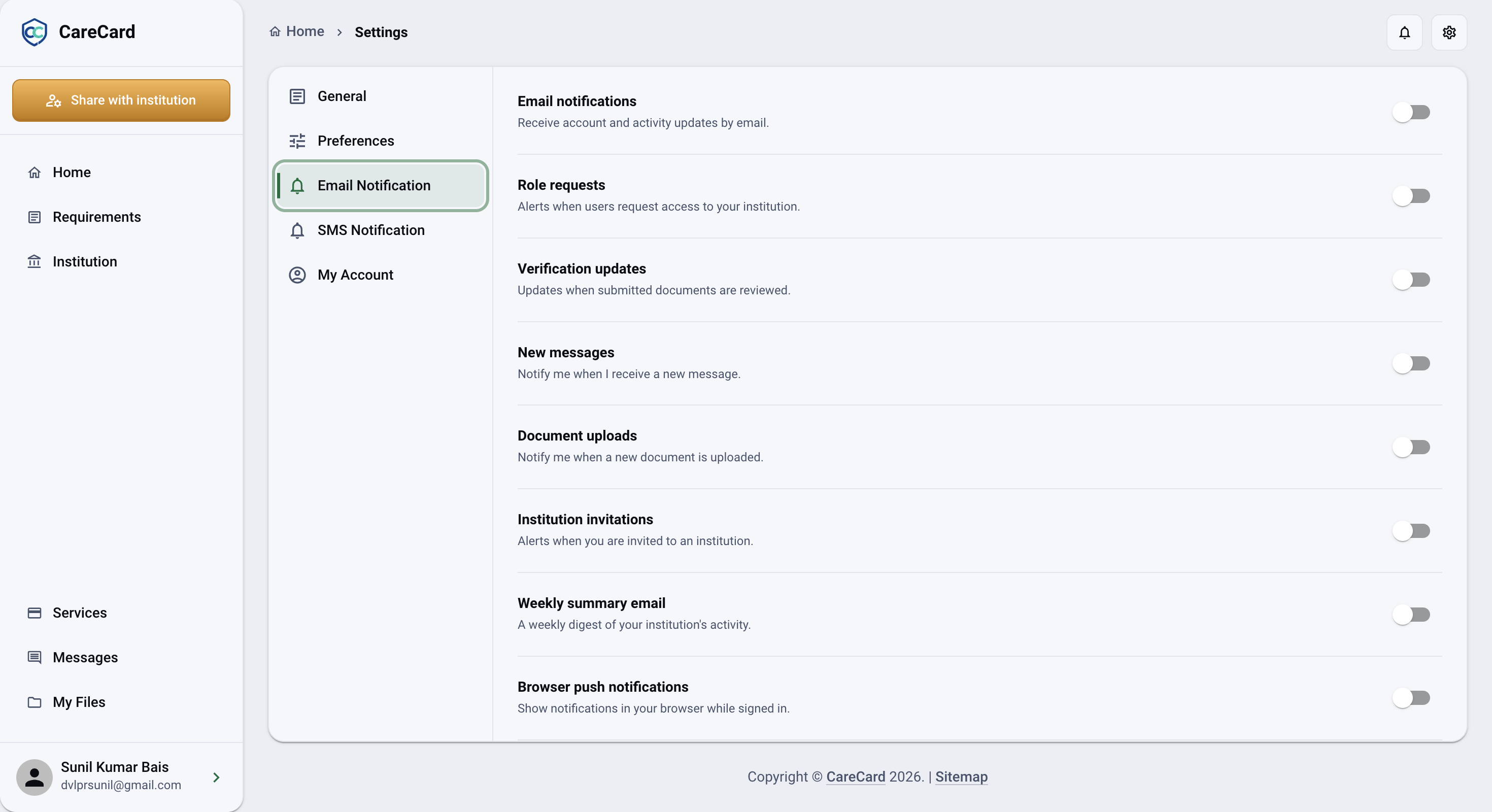
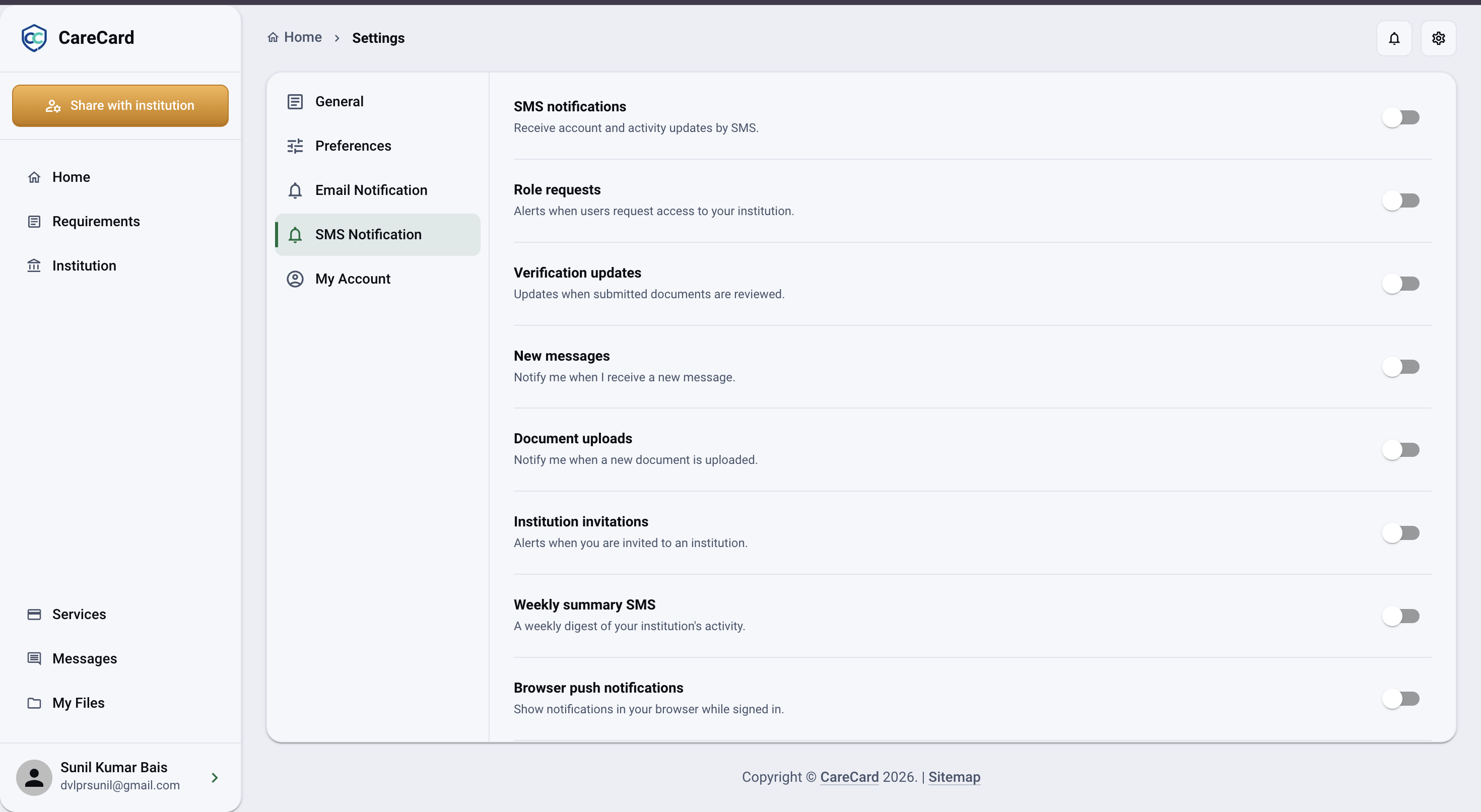
Email and SMS Notification
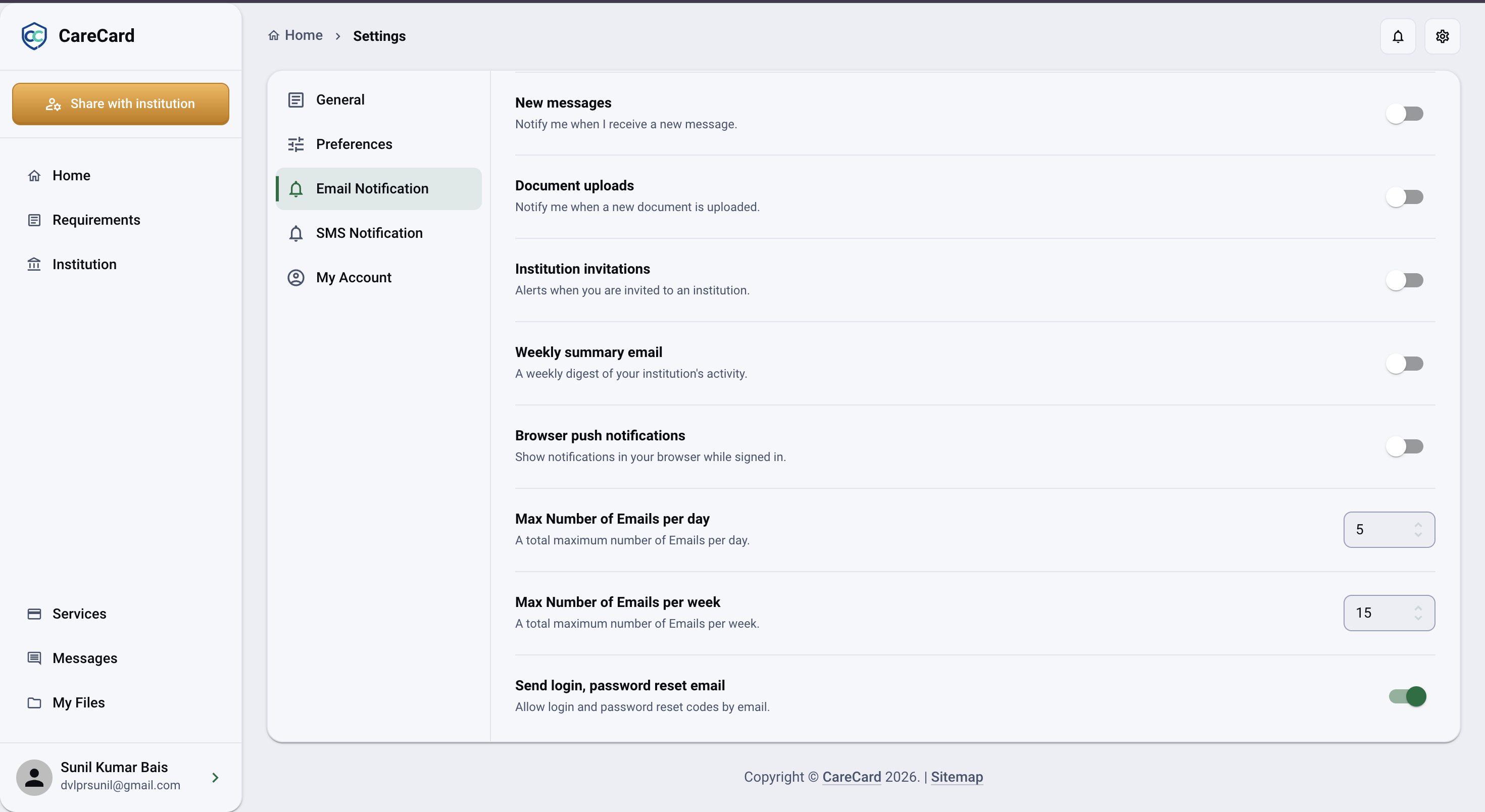
Email Notification and SMS Notification hold the same switches, once per channel: notifications on/off, Role requests, Verification updates, New messages, Document uploads, Institution invitations, Weekly summary, and Browser push notifications.
Right now only New messages changes what the notification bell counts (and Role requests, for users who can open the Requests page). The other switches are saved as preferences but don't yet send anything.
Each channel also has its own daily and weekly cap and its own Send login, password reset email / SMS switch. That switch is on by default and controls whether that channel can deliver your sign-in and password-reset codes — turning it off warns you that you may not be able to log in or reset your password that way.
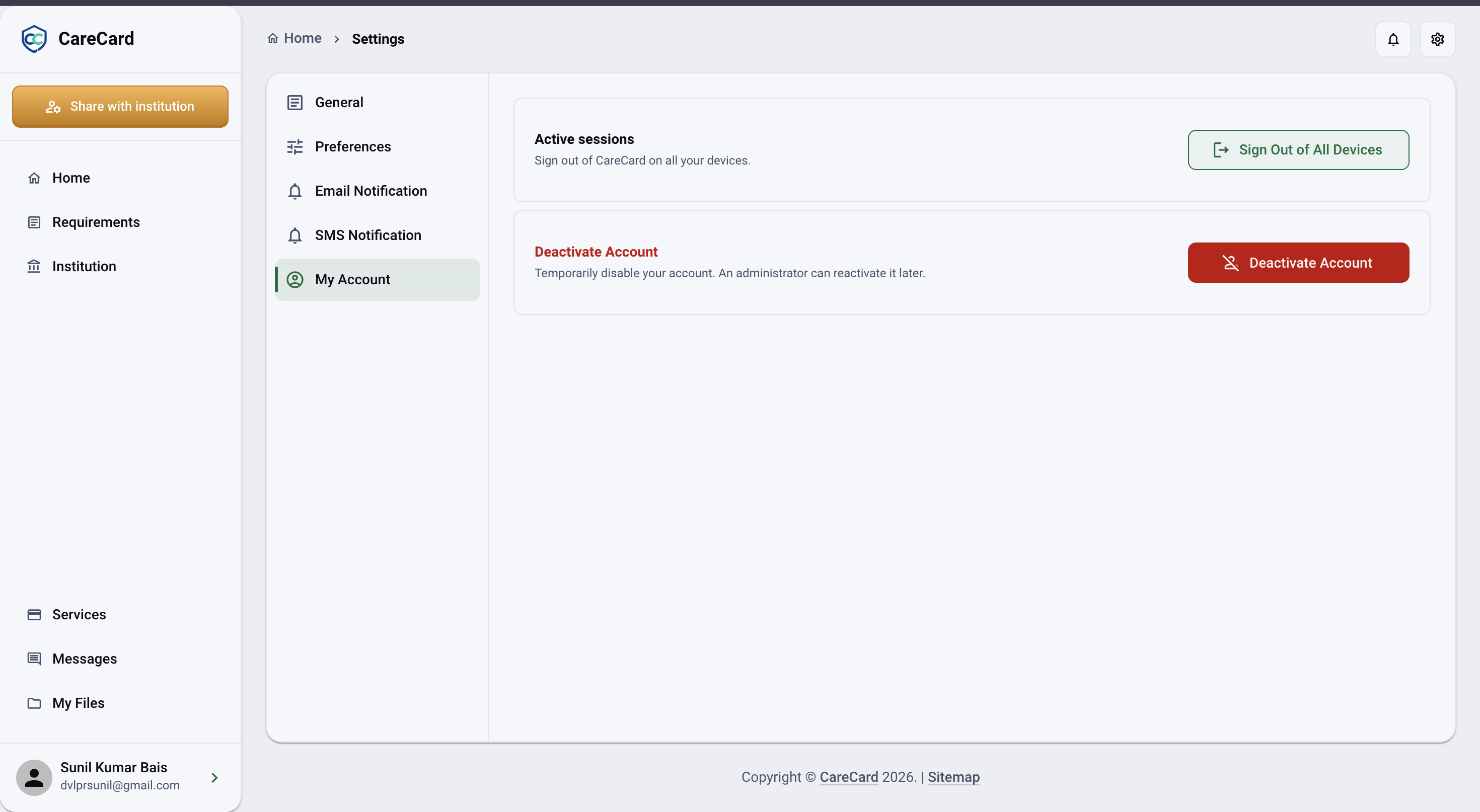
My Account
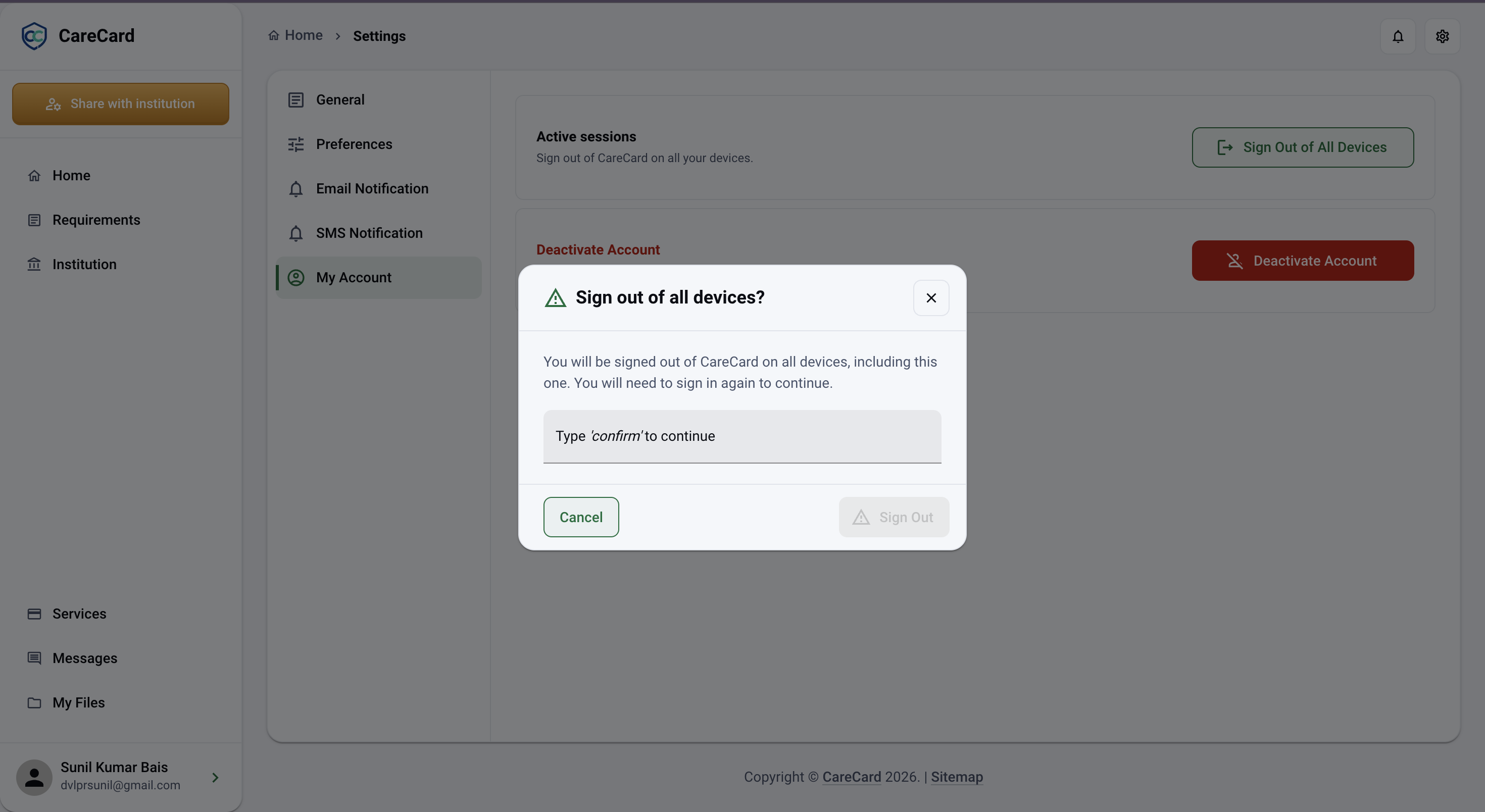
- Sign Out of All Devices — Ends every session on every device, including this one, so you'll need to sign in again.
- Deactivate Account — Signs you out everywhere and blocks sign-in until an administrator reactivates you. Your account data is kept.
Both open a confirmation dialog that explains the consequence and ask you to type
confirm before acting.
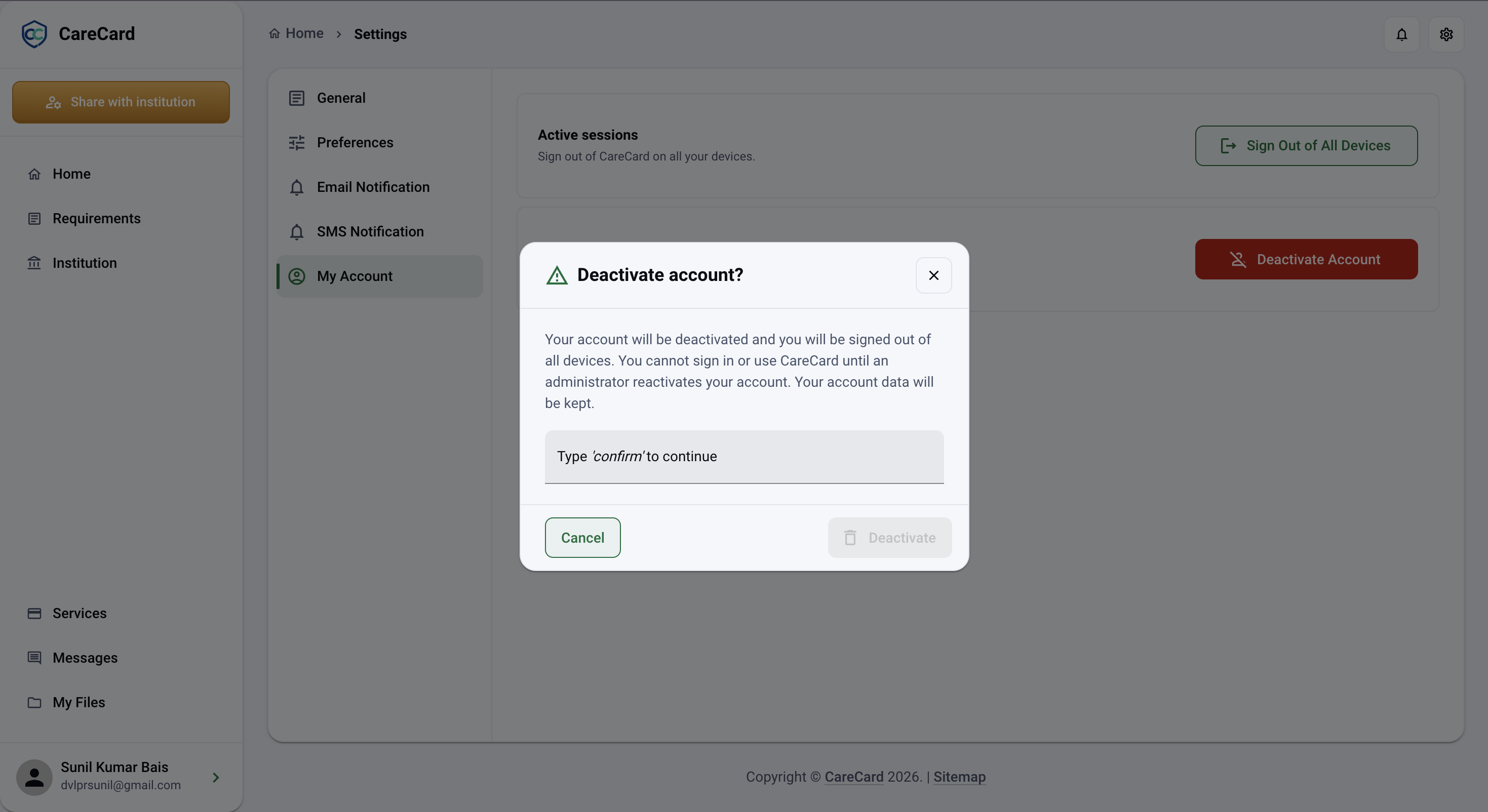
Deactivate Account blocks your own sign-in until an administrator reactivates you — you can't undo it yourself. If your account may be compromised, contact CareCard support instead.
If a Setting Doesn't Stick
CareCard saves your settings to your account and syncs them across your devices. If it can't reach the server, it tells you the settings were saved on this device and will sync later — so a change made offline isn't lost, but it won't appear on your other devices until you're back online.